

At a glance
Local progress belongs to the browser and website where you played. Export a backup before clearing data or switching devices. Optional cloud saves can transfer supported progress, but BlockBloom’s garden arrangements and mini-games remain local in the current version.
A game that remembers you on one browser can look new on another. That does not automatically mean the original save has disappeared. It may mean you have opened a different storage location: another browser, browser profile, device or website address.
The safest response is to preserve the browser that still has the progress. Do not clear its data as a first troubleshooting step. This guide explains the current save boundaries for the Rewritely Games website betas and a practical order for moving or recovering progress.
Local saving belongs to a particular place
Browser storage is associated with the site’s origin. MDN’s localStorage documentation explains that data can persist between ordinary browser sessions, while private-session data is cleared when the last private tab closes. A local development preview and the public website are different origins; a save in one does not automatically appear in the other.
For our games, also pay attention to browser profiles and devices. Opening the same game in a different browser is not an instruction to import the old browser’s data. An account can help with supported cloud progress, but signing in and enabling sync are separate choices.
Check which parts of your progress can travel
The games do not use one interchangeable save for everything. Adventure and Classic have separate progress, and the two games also have separate cloud data. A cloud restore for one game is not a reset or replacement of the other game.
Compare all columns. Scroll sideways if needed.
| Progress | Current website behavior |
|---|---|
| BlockBloom Adventure and Classic | Separate main-game saves; optional cloud sync supports these slots |
| BlockBloom garden arrangements and mini-games | Remain on this device; not included in current main-game cloud slots |
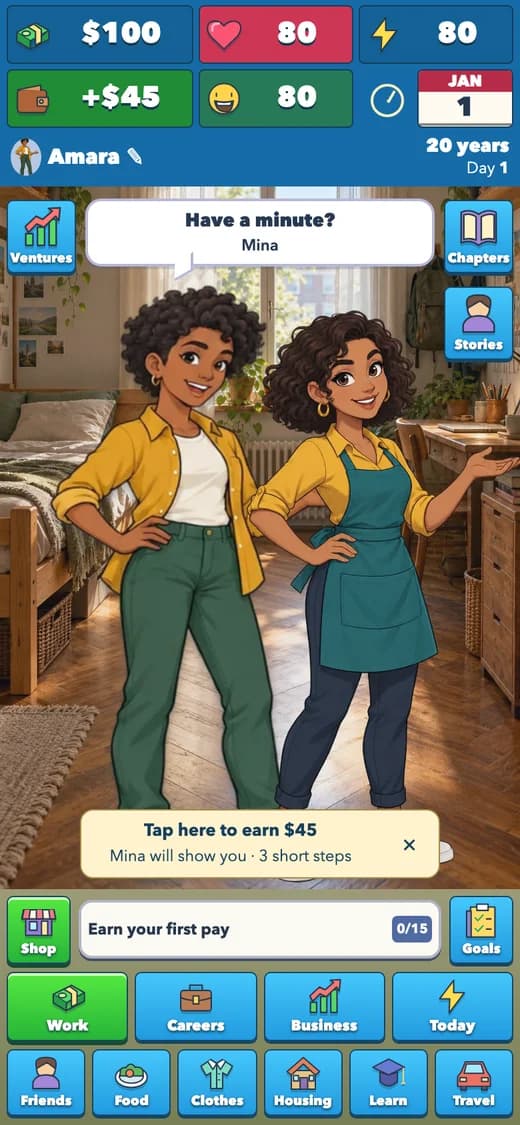
| Humble Hustle life and integrated startup journey | Saved together in the current game envelope; export and optional cloud sync are available |
| Optional playtest notes | Stay local unless you choose to export and share them |
Use a careful transfer sequence
An export gives you a file you control. A cloud save gives you a supported copy that another signed-in device can access. Both are useful, but neither is a reason to discard the only copy you have already verified.
- Open the browser that still has the correct progress and finish the current action.
- Use the game’s export control and keep the file somewhere you can find again.
- If you want cloud transfer, open Account & cloud saves and explicitly enable it for the game.
- Check the sync status before leaving the original browser.
- On the destination, review the device and cloud choices carefully before restoring.
- Confirm the character, level or board you expected, and keep the export as a fallback.
A conflict is a choice between copies
If you play on two devices, both can develop new progress. The cloud system checks revisions rather than silently assuming the last arrival is the right one. It does not combine the highest money, score and level from unrelated copies into a new super-save.
When a device/cloud choice appears, compare the available information and decide which whole copy you intend to keep playing. Export the device copy first if you are unsure. The restore flow keeps a local recovery copy before applying supported cloud data, but your own export remains a useful independent precaution.
Avoid switching rapidly between old open tabs while investigating. A tab can be holding an earlier view of the game. Follow any stale-save message and reload that tab rather than repeatedly trying to force the old state to save.
If progress looks missing, preserve evidence first
Check the address, browser, profile and mode. A Classic board is not your Adventure level. A local preview is not the public site. Then check whether the original browser still has the expected save and whether cloud sync was actually enabled for this game.
If the game will not load, try reloading and checking the connection before deleting website data. If a save is reported as invalid or from a newer version, preserve the export and ask for help. Repeatedly overwriting a file or resetting the game can remove the evidence needed to understand the problem.
When contacting support, send the game name, device, browser and steps that led to the issue. Do not send passwords or sign-in codes. Keep private save files to yourself unless support asks for a specific diagnostic and explains what is needed.
Know the difference between signing out and deleting
Signing out leaves device progress in place. Deleting one game’s cloud data removes that game’s active cloud saves and server history, while preserving its device copy, the other game and the shared sign-in account. Clearing browser data is a separate action that can remove local progress.
Read the privacy page before making a deletion decision, especially if you want to remove the sign-in account itself. The game controls and support route cover different requests; a single delete button should not be assumed to erase every kind of stored copy.
Your next move
Preserve the known-good copy first. Then export, sync deliberately, and verify the destination before clearing or replacing anything.
Sources & further reading
Checked against the website betas on 30 October 2026. Game rules and prices may change during development.
- Rewritely Games privacy and saves
First-party explanation of per-game storage, optional cloud accounts, recovery and deletion boundaries.
- MDN: Window.localStorage
Browser-origin persistence and private-browsing behavior; the game-specific transfer steps come from our own save implementation.

From Rewritely Games
We make BlockBloom and Humble Hustle. These first-party guides explain the games we build, including their current limits.